Daytona's Windows sandboxes give you a full Windows Server 2025 environment with a dedicated runtime, created in seconds from the prebuilt windows snapshot. This article walks through installing Microsoft Office (Word, Excel, PowerPoint) into a sandbox, activating it with your Microsoft 365 account, driving it programmatically, and creating a reusable Office snapshot so every future sandbox starts with Office already installed.
Prerequisites
A Daytona account and API key (Dashboard → API Keys).
Daytona SDK: e.g.
pip install daytonafor the Python one.A Microsoft 365 account with an Office license, to activate Office (or use Office's built-in trial period for evaluation, see step 2). Either way, review Microsoft's licensing terms to confirm your specific use case is eligible.
1. Create a sandbox and install Office
The below script creates a Windows sandbox from the prebuilt `windows` snapshot (Windows Server 2025 with 2 vCPU, 8 GiB RAM, 30 GiB disk), and then installs Office with Microsoft's Office Deployment Tool (ODT).
1"""Set PRODUCT_ID to your Microsoft 365 plan's product ID, then run."""2import time3from daytona import Daytona, CreateSandboxFromSnapshotParams45# Your Microsoft 365 plan's product ID,6# e.g. "O365BusinessRetail" or "O365ProPlusRetail".7# See Microsoft's Office Deployment Tool product ID reference.8PRODUCT_ID = "PUT-YOUR-PRODUCT-ID-HERE"9assert PRODUCT_ID != "PUT-YOUR-PRODUCT-ID-HERE", \10 "Set PRODUCT_ID to your Microsoft 365 plan's product ID before running."1112daytona = Daytona()1314# Create a Windows sandbox (Windows Server 2025)15sandbox = daytona.create(16 CreateSandboxFromSnapshotParams(snapshot="windows")17)1819# Download the Office Deployment Tool, write the Office config, and install silently.20install_office = rf"""21$ErrorActionPreference = 'Stop'22$odt = 'C:\ODT'23New-Item -ItemType Directory -Force -Path $odt | Out-Null2425[Net.ServicePointManager]::SecurityProtocol = [Net.SecurityProtocolType]::Tls1226Invoke-WebRequest 'https://officecdn.microsoft.com/pr/wsus/setup.exe' -OutFile "$odt\setup.exe"2728@'29<Configuration>30 <Add OfficeClientEdition="64" Channel="Current">31 <Product ID="{PRODUCT_ID}">32 <Language ID="en-us" />33 <ExcludeApp ID="Access" />34 <ExcludeApp ID="Groove" />35 <ExcludeApp ID="Lync" />36 <ExcludeApp ID="OneDrive" />37 <ExcludeApp ID="OneNote" />38 <ExcludeApp ID="Outlook" />39 <ExcludeApp ID="Publisher" />40 <ExcludeApp ID="Teams" />41 </Product>42 </Add>43 <Display Level="None" AcceptEULA="TRUE" />44 <Property Name="FORCEAPPSHUTDOWN" Value="TRUE" />45</Configuration>46'@ | Set-Content -Path "$odt\config.xml" -Encoding UTF84748# Install silently (~1-2 min)49Start-Process -FilePath "$odt\setup.exe" -ArgumentList '/configure', "$odt\config.xml" -Wait -NoNewWindow50"""515253def wait_for_office(sandbox, timeout=600):54 """Poll until Office has installed (the silent install runs in the sandbox)."""55 winword = "C:/Program Files/Microsoft Office/root/Office16/WINWORD.EXE"56 deadline = time.time() + timeout57 while time.time() < deadline:58 try:59 sandbox.fs.get_file_info(winword) # metadata only — no download60 return True61 except Exception:62 time.sleep(15)63 return False646566# Upload the script and run it in the sandbox67sandbox.fs.upload_file(install_office.encode(), "C:/install_office.ps1")6869# Launch the install; it runs silently in the sandbox70try:71 sandbox.process.exec(72 "powershell -ExecutionPolicy Bypass -NoProfile"73 " -File C:\\install_office.ps1",74 timeout=2400,75 )76except Exception:77 pass7879assert wait_for_office(sandbox), "Office install did not complete"80print("Office installed")
Before running it, set Product_ID to your Microsoft 365 plan: Microsoft's Office Deployment Tool documentation lists the product IDs. By default it installs Word, Excel and PowerPoint; the <ExcludeApp> lines leave out everything else (Outlook, OneNote, Teams, and so on), so add or remove them to change the set.
The install runs headless (Display Level="None") and finishes in a few minutes.
2. Activate with your Microsoft 365 account
Office needs to be signed in to a Microsoft 365 account. Signing in is interactive, so you can do it whichever way suits you: open the sandbox's VNC from the Daytona dashboard and sign in by hand (open Word, then enter your credentials in the sign-in dialog), or drive it with Daytona's computer-use API, which also lets an agent perform the sign-in.
With computer-use, start the desktop, then launch apps and send keyboard, mouse, and screenshot calls:
1cu = sandbox.computer_use2cu.start() # bring up the desktop (VNC) stack before automating34# Launch Word5cu.keyboard.hotkey("super+r")6cu.keyboard.type("winword")7cu.keyboard.press("Return")89# Take a screenshot to see the current screen10shot = cu.screenshot.take_full_screen()
Once signed in, Office is activated and ready to use.
Note
Just evaluating? For a quick trial you can press the Escape key to dismiss the sign-in prompt and use Office in its built-in trial period without signing in. This is for evaluation purposes only. Review Microsoft's licensing terms to confirm your use case is eligible.
3. Drive Office programmatically
With Office activated, you can automate it end-to-end. Computer-use gives you keyboard, mouse, and screenshots against the live desktop:
1cu.keyboard.type(2 "Hello from Microsoft Word, running in a Daytona sandbox.", 253)4cu.keyboard.press("Return")56shot = cu.screenshot.take_full_screen(show_cursor=True)
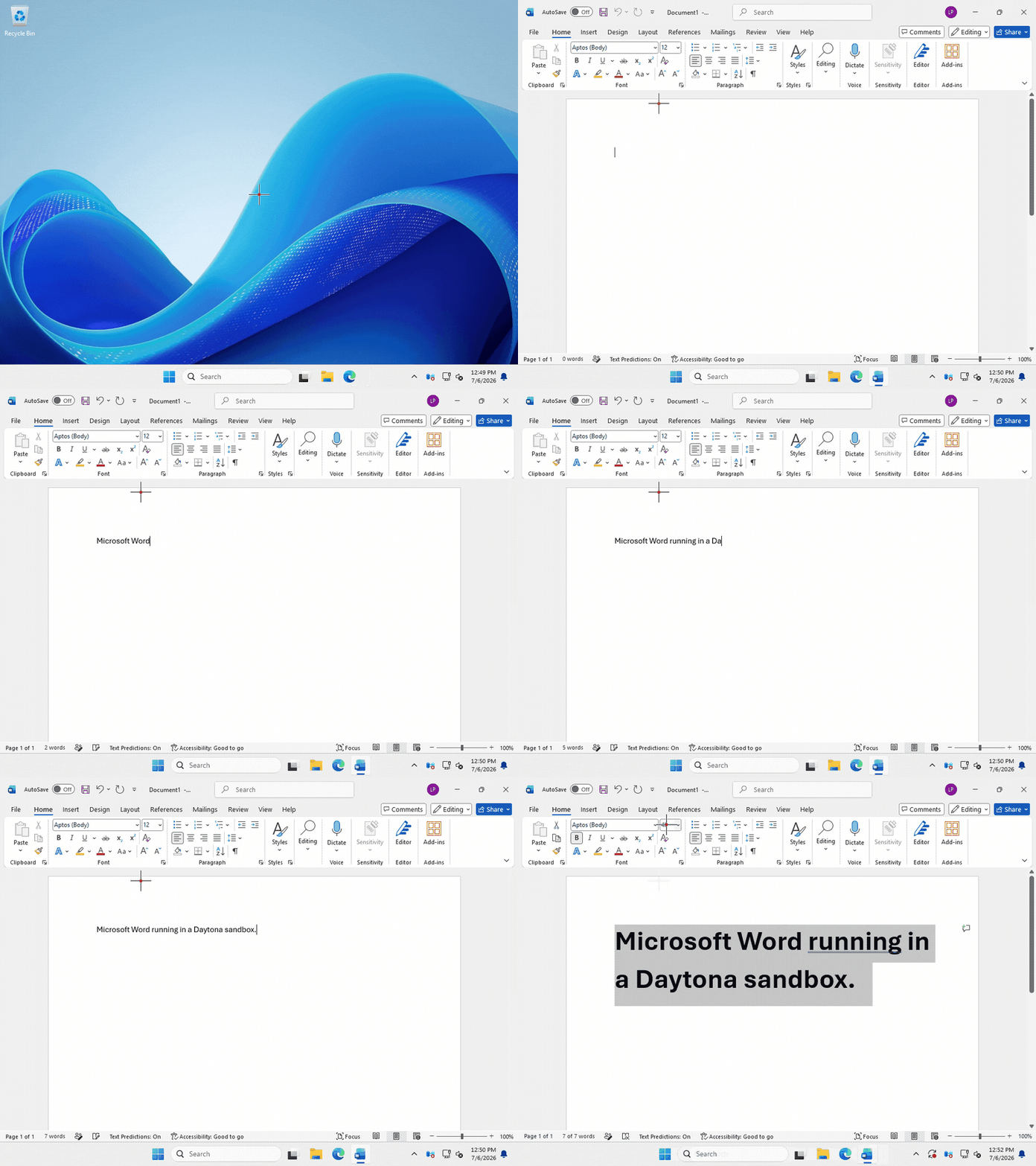
The same approach drives the whole suite. Here Excel is used end to end by an agent, entirely through the API:
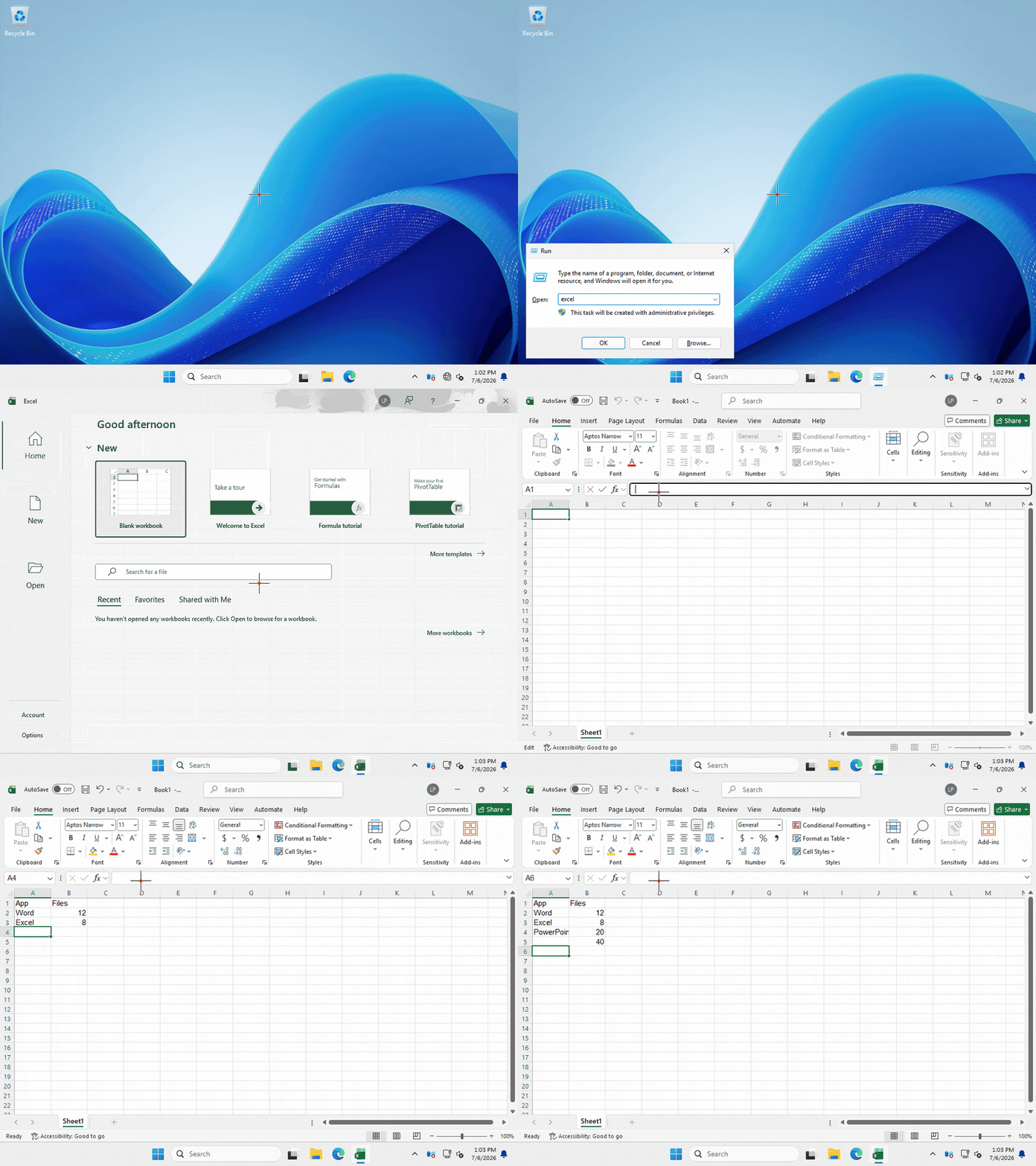
Want to watch it happen? Open the sandbox's VNC from the Daytona dashboard while your code runs and you'll see every keystroke and click in real time, which makes building and debugging automations much easier.
For agent-driven use, Daytona also exposes these capabilities over an MCP server: install it, run daytona mcp start, and a connected agent gets the computer_use_* tools (screenshot, mouse, keyboard, accessibility, and windows) plus file tools like list_files and file_download, so it can operate Office directly without any glue code.
4. Bake a reusable Office snapshot
Installing Office every time is wasteful. Instead, capture the sandbox in which you have installed Office as a snapshot. New sandboxes created from it start with Office already installed, in seconds.
1# Stop the sandbox, then snapshot its filesystem into a named template2sandbox.stop()3sandbox._experimental_create_snapshot("windows-office")45# Every new sandbox from this snapshot has Office preinstalled6office_sandbox = daytona.create(CreateSandboxFromSnapshotParams(snapshot="windows-office"))
Because the snapshot is just a template, you can spin up as many identical Office sandboxes from it as you need; here is a spun snapshot showing an agent making a PowerPoint presentation:
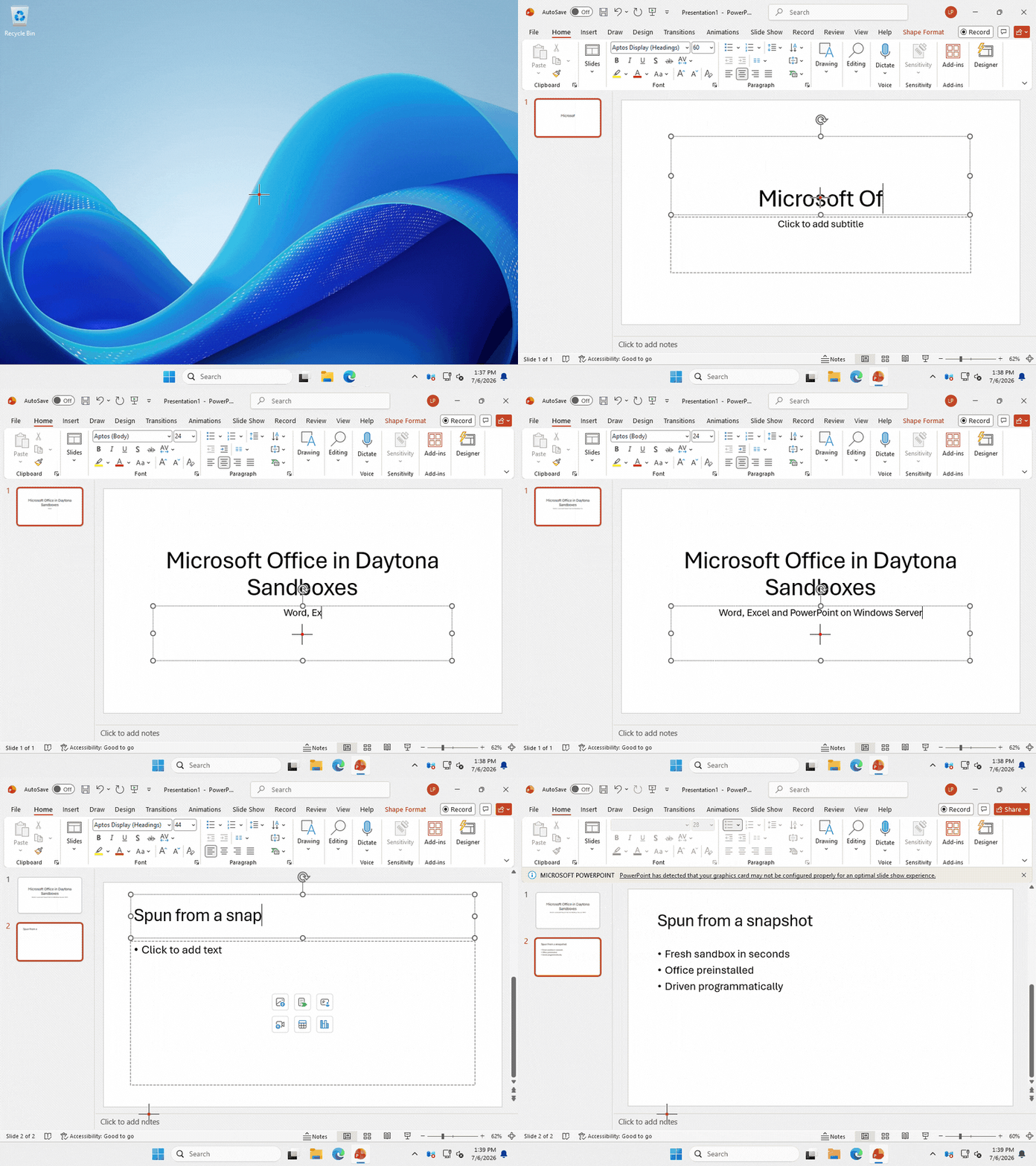
If you need to keep a warm, ready-to-use machine between tasks instead, you can pause it, which freezes the sandbox (including running apps) in memory and resumes in a few seconds:
1sandbox.pause() # freeze2sandbox.start() # resume, exactly where you left off
Wrap up
On Daytona you can now create a Windows Server 2025 sandbox, install and activate Microsoft Office, drive it programmatically, and turn it into a reusable snapshot. From here you can spawn Office-ready sandboxes on demand for document automation, testing, or agent-driven workflows, with each one in a full, isolated Windows machine.